Contact & report a bug
This is the first release, so bugs are expected. Grabbing a quick debug log and emailing it over is the fastest way to get something fixed — here's how.
Open Niya
Open the menu
Go to Settings
Tap "Report a problem"
It's the last item in the Settings list, marked with a 🐞.
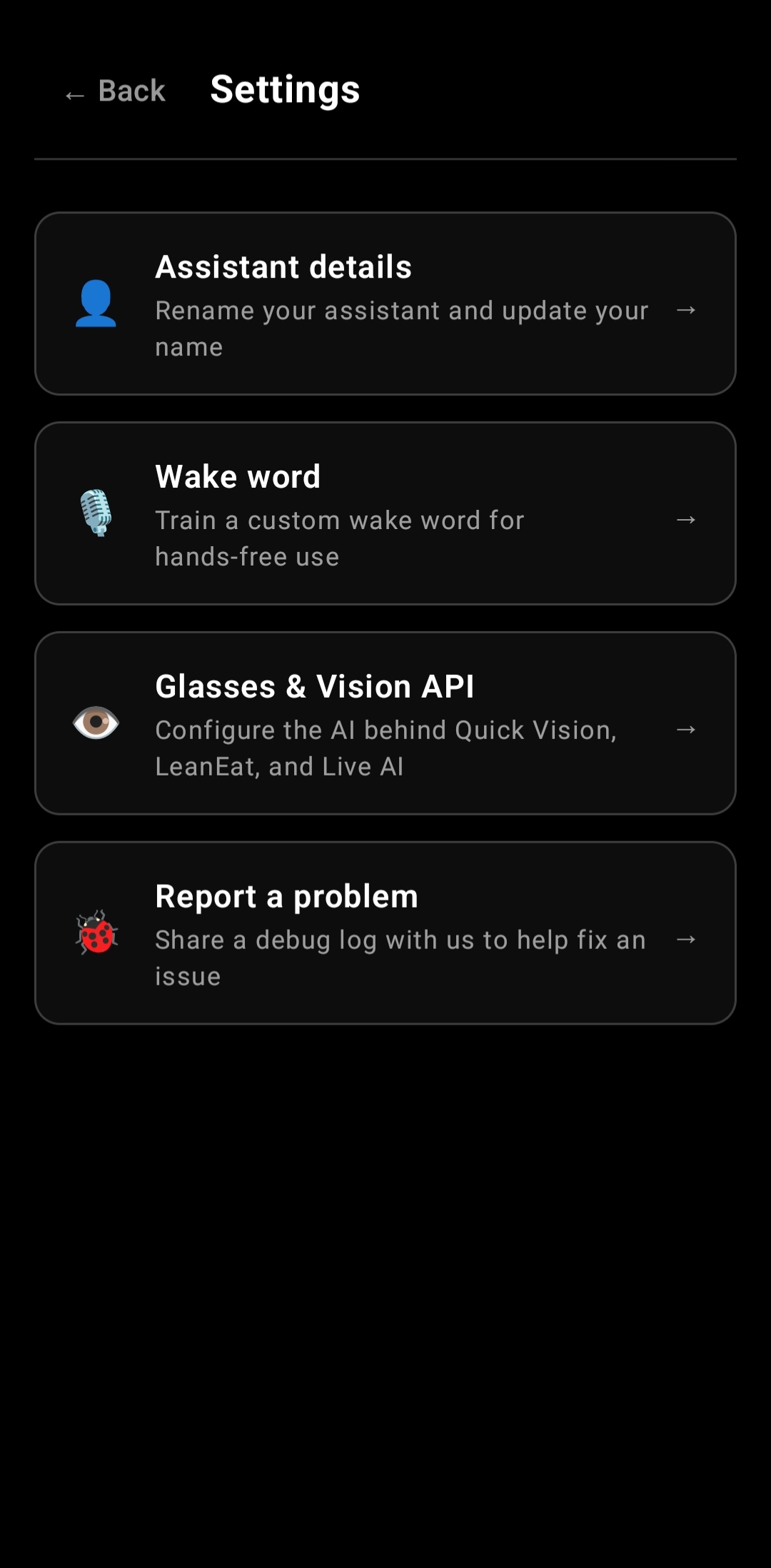
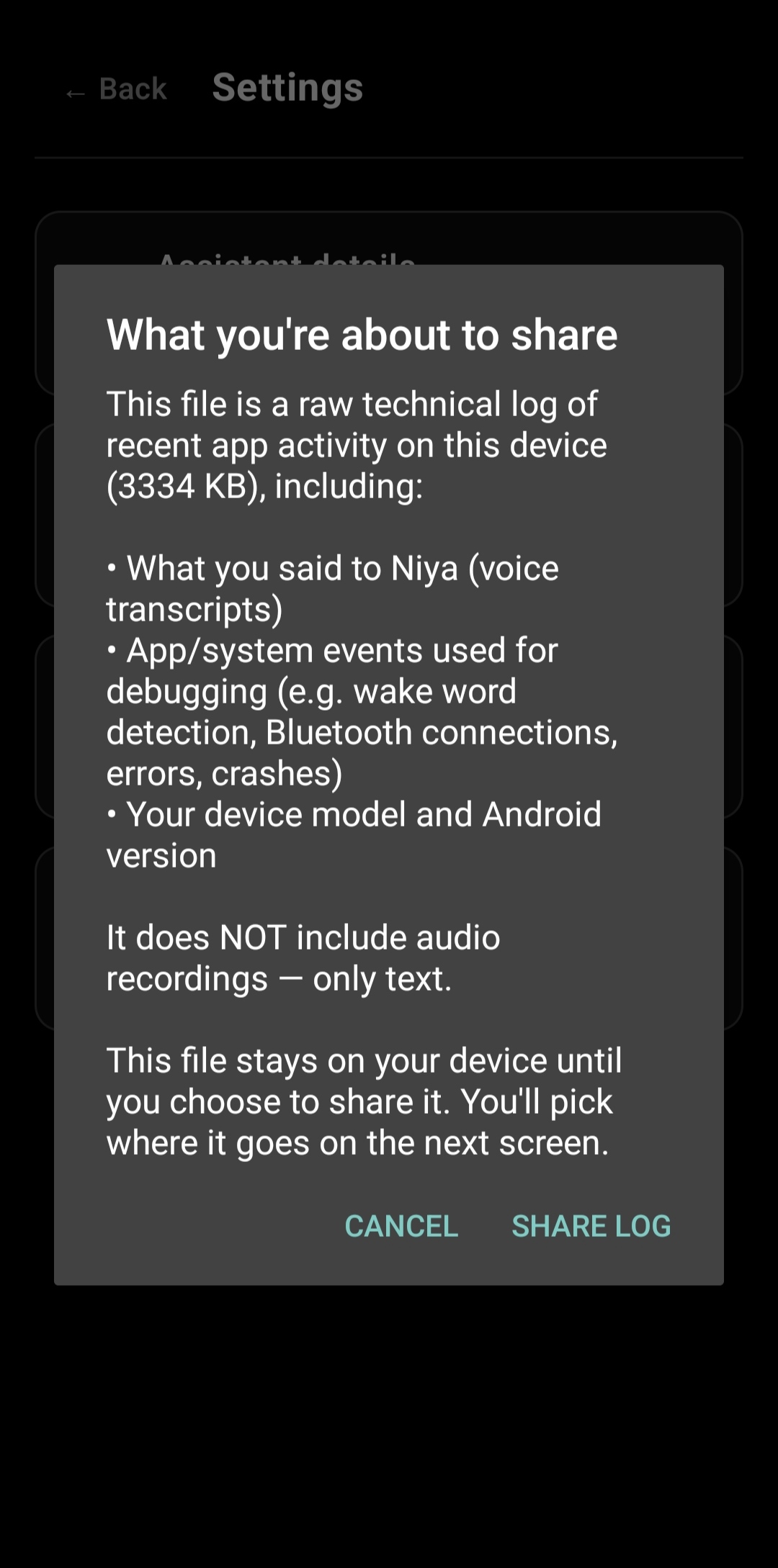
Tap "Share Log"
Niya shows you exactly what's in the file before you send anything — it's text only, no audio, and stays on your device until you choose to share it.
Email it over
Pick your email app from the share sheet, address it to us, and attach the log. In the body, include:
- A description of what went wrong, in as much detail as you can
- Your phone model and Android version
- How long ago you got the phone
- The log file from the last step
That's everything we need
Send it to the address below and we'll take it from there.
A quick note on privacy before you send anything.
Text only, no audio
The debug log contains voice transcripts (what you said, as text), app/system events like wake word detection and crashes, and your device model — never audio recordings.
You're always in control
The file stays on your device until you tap Share Log and pick where it goes. Nothing is sent automatically, and nothing is collected in the background.